





Acceasy Player user guide
Transcript
Read everything that is said in the video, search it, and jump to any moment from the text.
How do I open the transcript?
Select the transcript button in the control bar, or press T. The transcript opens in a panel inside the player.
- Select the transcript button
 , just right of CC in the control bar. Its picture is a page with lines of text.
- The transcript panel opens. The button stays highlighted while the panel is open.
Where the panel opens depends on the size of the player:
- Beside the video, on the right, on a wide player (900 pixels or more).
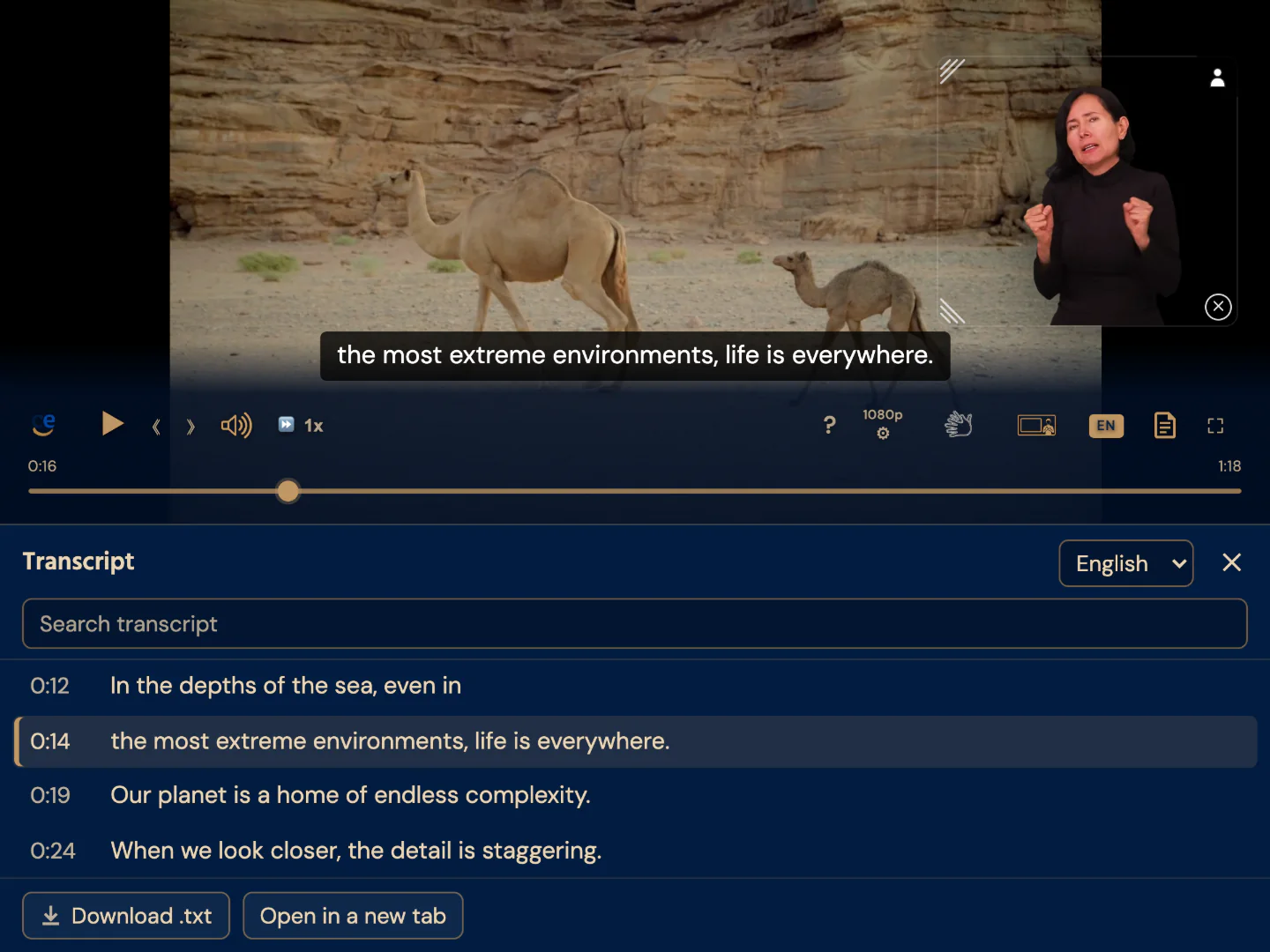
- Below the video, as a sheet, on a narrower player.
- Over the whole video on a small, short player. The video keeps playing behind the panel.
Beside or below the video, the panel covers nothing: the video gets smaller to make room. When the player changes size, for example in full screen, the panel moves to the place that fits.
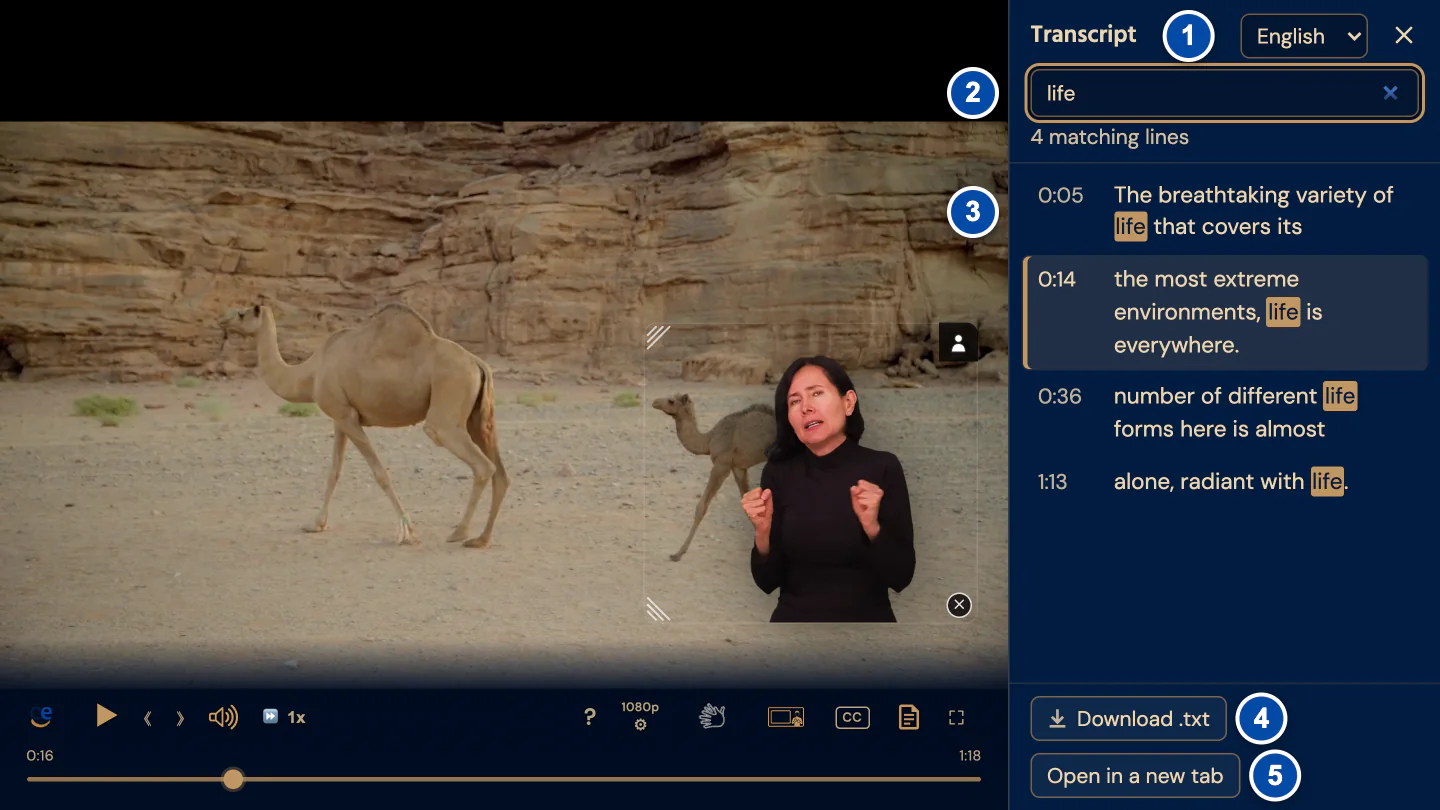
- The transcript language, here English.
- The search box.
- A line of the transcript: select it to jump to that moment.
- Download .txt saves the transcript.
- Open in a new tab opens the transcript page.
With the keyboard
Press T. Keyboard focus moves into the panel, to the line being spoken (or the first line), so you can start reading right away.
On a touch screen
Tap the video to show the controls, then tap the transcript button.
Note: You see the transcript button only when the video has captions or a transcript. On a small player it may be inside the ⋯ group (More controls): see Why are some buttons missing on a small screen?
While the panel covers the whole video, the video’s buttons are out of reach: close the panel to use them again. The shortcut keys keep working.
How do I follow along and jump to a line?
Each line shows the time it is spoken. The line being spoken now has a gold bar on its left, and the list scrolls to keep it in view. Select any line to jump there.
- Open the transcript.
- Select a line. The video moves to that moment, and the sign-language translation follows. If the video was playing, it keeps playing; if it was paused, it stays paused.
The list does not scroll by itself while you scroll it yourself, while you search, or while you move through it with the keyboard.
With the keyboard
Press Tab until you reach the list. ↑ and ↓ move from line to line, Home and End go to the first and last line, and Page Up and Page Down move 10 lines. Press Enter to jump the video to that line. In the list, ← and → still jump 10 seconds, and the letter shortcuts still work.
Note: Some videos have a transcript written as paragraphs, without times. You can read and search it, but it does not mark the line being spoken and you can’t jump from it.
How do I search the transcript?
Type a word in the search box at the top of the panel. Only the lines that contain it stay in the list, with the word highlighted.
- Open the transcript.
- Select the box Search transcript and type a word.
- The list shows only the matching lines, and the number of matches appears under the box, for example “4 matching lines”.
- Select a line to jump to that moment.
- To see every line again, delete what you typed.
Search ignores capital letters and accents: “cancion” also finds “canción”. Screen readers announce the number of matching lines.
With the keyboard
When the search box has text, Escape clears it. The shortcut keys are off while you type in the box: press Tab to leave it.
How do I change the transcript language?
Choose a language in the list at the top of the panel, next to the heading Transcript. You see this list only when the transcript has more than one language.
- Open the transcript.
- Select the language list. It shows the current language, for example English.
- Choose another language. Each one is written in its own language, for example Español.
Until you choose a language in the panel, it opens in the caption language when captions are on. Otherwise it opens in the language that matches the audio language or the player’s language, when the transcript has it, or else in its first language. The language you choose in the panel changes only the transcript, not the captions. It stays while you are on the page.
How do I download, print or open the transcript on its own page?
Use the two buttons at the bottom of the panel. They work on the language shown in the panel.
- Open the transcript and choose its language.
- Select Download .txt to save the transcript as a plain text file, or Open in a new tab to open the transcript page in a new browser tab.
- To print the transcript, open the transcript page and use your browser’s Print command.
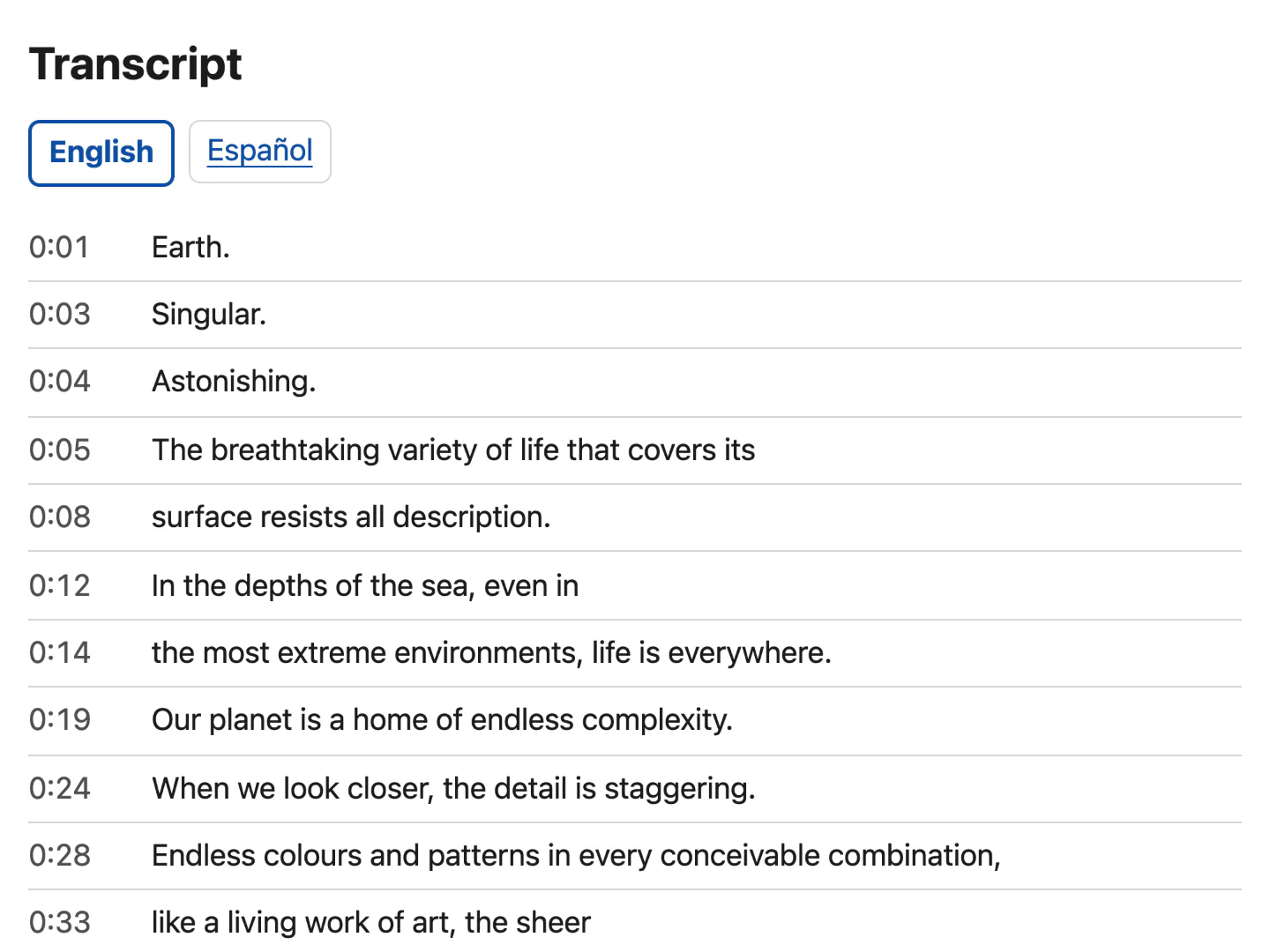
The transcript page is a plain page with clear text. It follows your device’s light or dark setting. When there is more than one language, select a language name at the top to switch. The language buttons are left out when you print.
When the transcript comes from the captions, each line starts with its time, on the page and in the saved file.
Note: When a video comes with a written transcript, the caption menu also has a Download transcript item, one for each language when there are several. It saves that transcript or opens it in a new tab.
Site owners can link to the transcript page too: see Can I link to the transcript page?
How do I close the transcript?
Select ✕ at the top right of the panel, or select the transcript button again.
- Select ✕ (Close transcript) at the top right of the panel. The video gets its full space back.
With the keyboard
Press T, unless you are typing in the search box. Or press Escape while keyboard focus is inside the panel. In the search box, when it has text, the first press clears it and the second closes the panel. Focus then goes back to the transcript button.
On a touch screen
Tap ✕ at the top right of the panel.
Note: Escape closes the transcript only when keyboard focus is inside the panel. Otherwise, press T or select ✕.
Still need help?
Book a short call with the U-I-X team, or send us an email.