





Acceasy Player user guide
Playing videos
Play, pause and move through a video, and set the sound and the picture the way you like.
How do I play or pause the video?
Select Play near the left end of the control bar. While the video plays, the same button is Pause.
- Select
 Play. The video starts and the button changes to Pause.
- To pause, select Pause.
With a mouse
Click the video itself. A play or pause sign flashes in the middle of the picture.
On a touch screen
Tap the video to show the controls, then tap Play or Pause.
With the keyboard
Press K or Space. When a button has keyboard focus, Space presses that button instead, so use K.
The signer plays and pauses together with the video. When the video ends, the controls come back and the button shows Play again.
How do I jump to another part of the video?
Use the seek bar, the long line near the bottom of the player. Its round handle shows where you are in the video.
- Drag the round handle along the seek bar, or select a point on the bar.
- The video moves to that point. The signer follows.
Near the seek bar, the current time is on the left and the total length on the right, in minutes and seconds. When the player is 768 pixels wide or less, as on most phones, the times show only in full screen.
On a touch screen
Tap the video to show the controls, then drag the round handle.
With the keyboard
Press ← or → to jump back or forward 10 seconds. Or press Tab until you reach the seek bar and use the arrow keys to move in small steps. Screen readers say where you are, for example “1:23 of 4:56”.
Note: While the seek bar has keyboard focus, the arrow keys move only the seek bar and the other shortcut keys are off. Press Tab to move on.
Tip: In the transcript, you can select a line to jump to it. See how to follow along and jump to a line.
How do I go back or forward 10 seconds?
Select Rewind 10 seconds or Forward 10 seconds, next to Play.
- To go back 10 seconds, select
 Rewind 10 seconds.
- To go forward 10 seconds, select
 Forward 10 seconds.
On a touch screen
Tap the video to show the controls, then tap the button.
With the keyboard
Press ← to go back and → to go forward. Y and I do the same.
Near the start, Rewind 10 seconds goes to the start. Near the end, Forward 10 seconds goes to the end. The signer follows every jump.
Note: On a small player, these two buttons may be inside More controls (⋯). See small screens.
How do I change the volume or mute the sound?
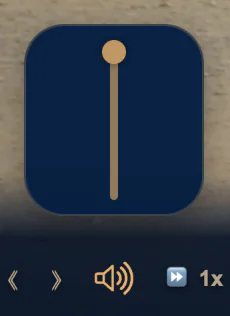
Select the speaker to turn the sound off or back on. To change how loud it is, use the volume slider above the speaker.
- Point at
 the speaker with the mouse. The volume slider opens above it.
- Drag the slider up to make the sound louder, or down to make it quieter. At the bottom, the sound is off.
- To turn the sound off or back on at once, select the speaker (Mute). A slash over the speaker shows that the sound is off.
On a touch screen
Tap the video to show the controls, then tap the speaker to turn the sound off or back on. Your device's own volume controls also work.
With the keyboard
Press ↑ or ↓ to change the volume by 10%. The player announces the new volume, for example “Volume 70%”. Press V to turn the sound off or back on; the player announces “Muted” or “Unmuted”.
You can also press Tab until you reach the speaker: the slider opens. Press Tab once more to move into the slider, use the arrow keys, and press Escape to close it.
Note: Each time the video loads, the sound is on and the volume is at full. The player does not remember your volume.
How do I slow down or speed up the video?
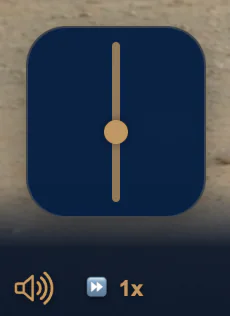
Point at the speed button (1x at normal speed) and move the slider that opens. Or press M to go faster and N to go slower.
- Point at
 the speed button with the mouse. The speed slider opens above it. There is no need to select the button: pointing at it is enough.
- Drag the slider up to go faster, or down to go slower. It goes from 0.25x (a quarter of the normal speed) to 2x (twice as fast), in steps of 0.25.
- The speed button shows the speed you chose, for example 1.25x.
With the keyboard
Press M to go faster or N to go slower, by 0.1 each time, from 0.25x up to 4x. The player announces the new speed, for example “Speed 1.1×”. You can also press Tab until you reach the speed button: the slider opens. Press Tab once more to move into it, use the arrow keys, and press Escape to close it.
The signer always follows the speed. The speed stays when you change the resolution or the audio language. The next time the video loads, it plays at normal speed again.
How do I change the picture quality?
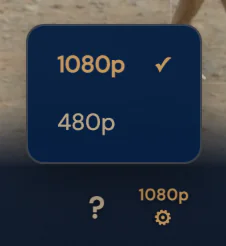
Select the resolution button, for example 1080p, and choose another resolution in the list. A higher number gives a sharper picture.
- Select
 the resolution button. It shows the current resolution above a small gear. A list opens.
- Choose a resolution, for example 480p. The current one has a check mark.
- The video goes on from the same point. It keeps playing, or stays paused, at the same speed.
With the keyboard
Press Q to switch to the next resolution. The list opens for a moment to show the new one, and the player announces it, for example “Resolution 480p”. To use the list itself with the keyboard, see menus and sliders.
When the video loads, the player picks the highest resolution on a large player and a lower one on a small player (480p when the video has it). It does not remember your choice.
Note: When you change the resolution, the translation window goes back to its usual corner and size. If the video has only one resolution, the button shows it but does not open a list.
How do I watch in full screen?
Select Full screen at the right end of the control bar, or press F.
- Select
 Full screen. The player fills the screen.
- To leave full screen, select Exit full screen. It is in the control bar, and also as a round button in the top-right corner.
With the keyboard
Press F to turn full screen on or off. Escape also leaves full screen.
In full screen, the round Exit full screen button stays in the top-right corner all the time, even when the control bar is hidden.
Note: When you enter or leave full screen, the translation window goes back to its usual corner and size. If the transcript is open, it goes full screen together with the video.
On a phone or tablet held upright, full screen can show a vertical version of the video.
Can I watch a vertical version on my phone?
Yes, when the video has one. On a phone or tablet, go full screen while you hold the device upright: the vertical version plays by itself. There is no button for it.
- Hold your phone or tablet upright.
- Select Full screen. The vertical version fills the screen.
- Turn the device sideways to go back to the usual wide version. Turn it upright again for the vertical version.
- Leave full screen to go back to the wide version.
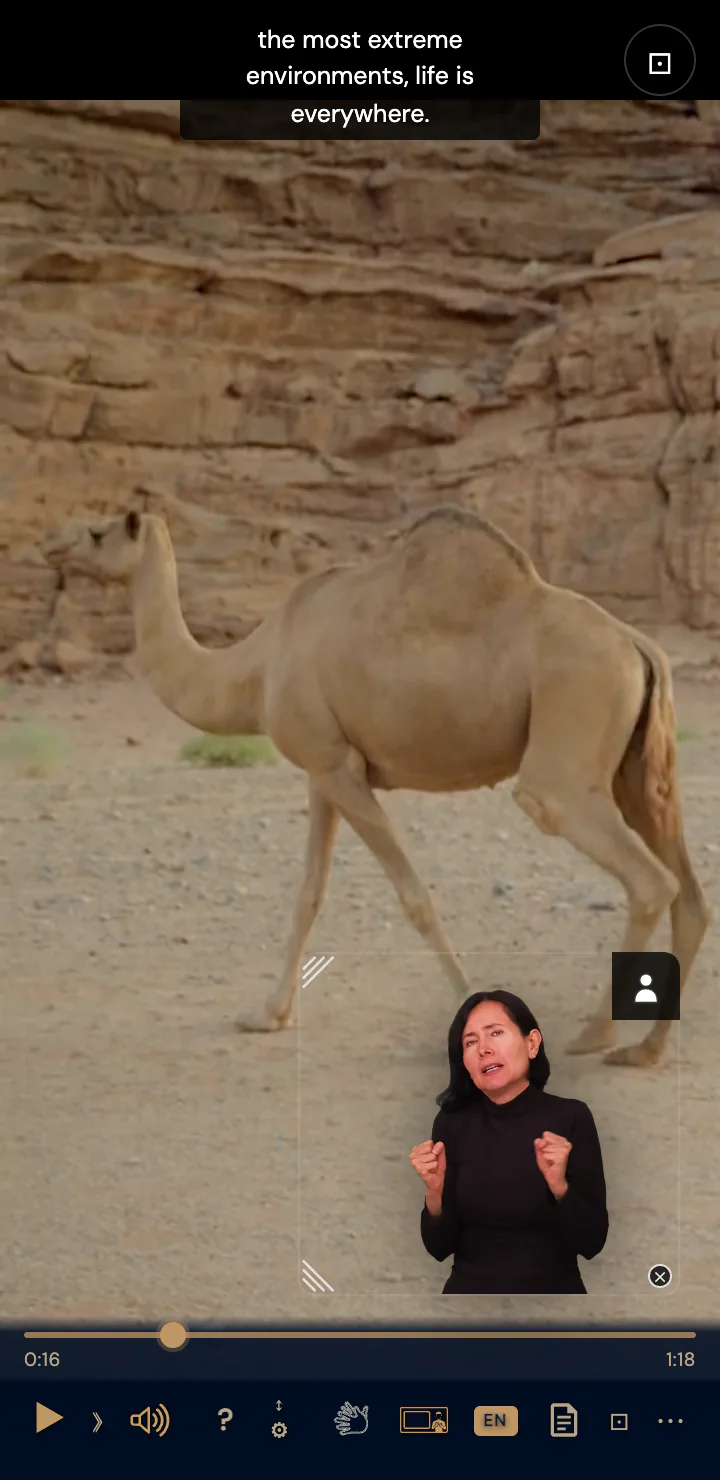
When the version changes, the video goes on from the same point, keeps playing or stays paused, and keeps its speed. The translation window moves to its usual corner. While the vertical version plays, the resolution button shows ↕.
Note: The vertical version needs a phone or tablet, full screen and the device held upright. Outside full screen, the wide version stays, with black bands above and below when you hold the device upright.
Still need help?
Book a short call with the U-I-X team, or send us an email.