





Acceasy Player user guide
Audio languages and audio description
Choose the language you hear, and turn audio description on when the video has it.
How do I hear the video in another language?
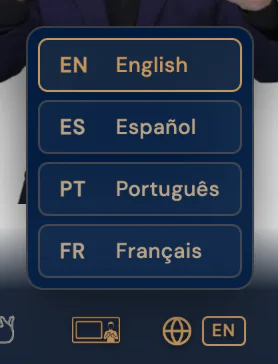
Select the globe button and choose a language. You see it only when the video has two or more audio languages.
- Select the globe button
 in the control bar. It shows the code of the language you hear now, for example EN. A list of audio languages opens.
- Choose a language, for example ES Español. The video goes on in that language from the same moment.
A playing video keeps playing and a paused one stays paused. The speed and the place of the translation window stay the same.
With the keyboard
Press L for the next language. The list opens for a moment, and the player announces the change, for example "Audio language: Español". Or move to the globe with Tab, press Enter, choose with the arrow keys and press Enter.
On a touch screen
Tap the video to show the controls, tap the globe button, then tap a language.
Note: No globe button? The video has only one audio language. More about missing buttons.
How do I turn on audio description?
Select AD in the control bar. You see it only when the video has an audio-described version, in which a voice describes what happens on screen.
- Select AD in the control bar. The video switches to the described version from the same moment, and AD becomes a filled gold badge.
- To turn it off, select AD again. The badge goes back to an outline.
A playing video keeps playing and a paused one stays paused. The speed and the place of the translation window stay the same.
With two or more audio languages, the audio-language list also shows the described versions, for example EN English (audio described). Choosing one turns audio description on.
With the keyboard
Press D. The player announces "Audio description on" or "off". While it is on, L moves to the next language's described version when there is one.
On a touch screen
Tap the video to show the controls, then tap AD.
Note: AD shows only while the language you hear has a described version; otherwise D does nothing. On a small screen, AD may be inside ⋯ More controls.
Does the player remember my audio choices?
It remembers whether you want audio description, but not the audio language.
- Audio description: this browser keeps your last choice, made with AD, D or the audio-language list (a described version counts as on, any other as off). When a video next starts in a language that has a described version, audio description is on or off the way you left it.
- Audio language: each time the video loads, the player picks the first of your browser's languages that the video has, or else the video's first language.
A website that shows the video can choose how it starts, and its choice comes first. In a private window, or when your browser blocks site data, your choice is not kept for your next visit.
Your caption choices are remembered too; translation window settings are not.
Tip: Site owners: see how to choose the starting audio language and how to make audio description start on.
Still need help?
Book a short call with the U-I-X team, or send us an email.