





Acceasy Player user guide
Getting started
Find your way around the player, start a video and choose how you want to use it.
What's on the screen?
The video fills the player. The signer appears in the translation window, captions appear when you turn them on, and the controls sit in a bar along the bottom.
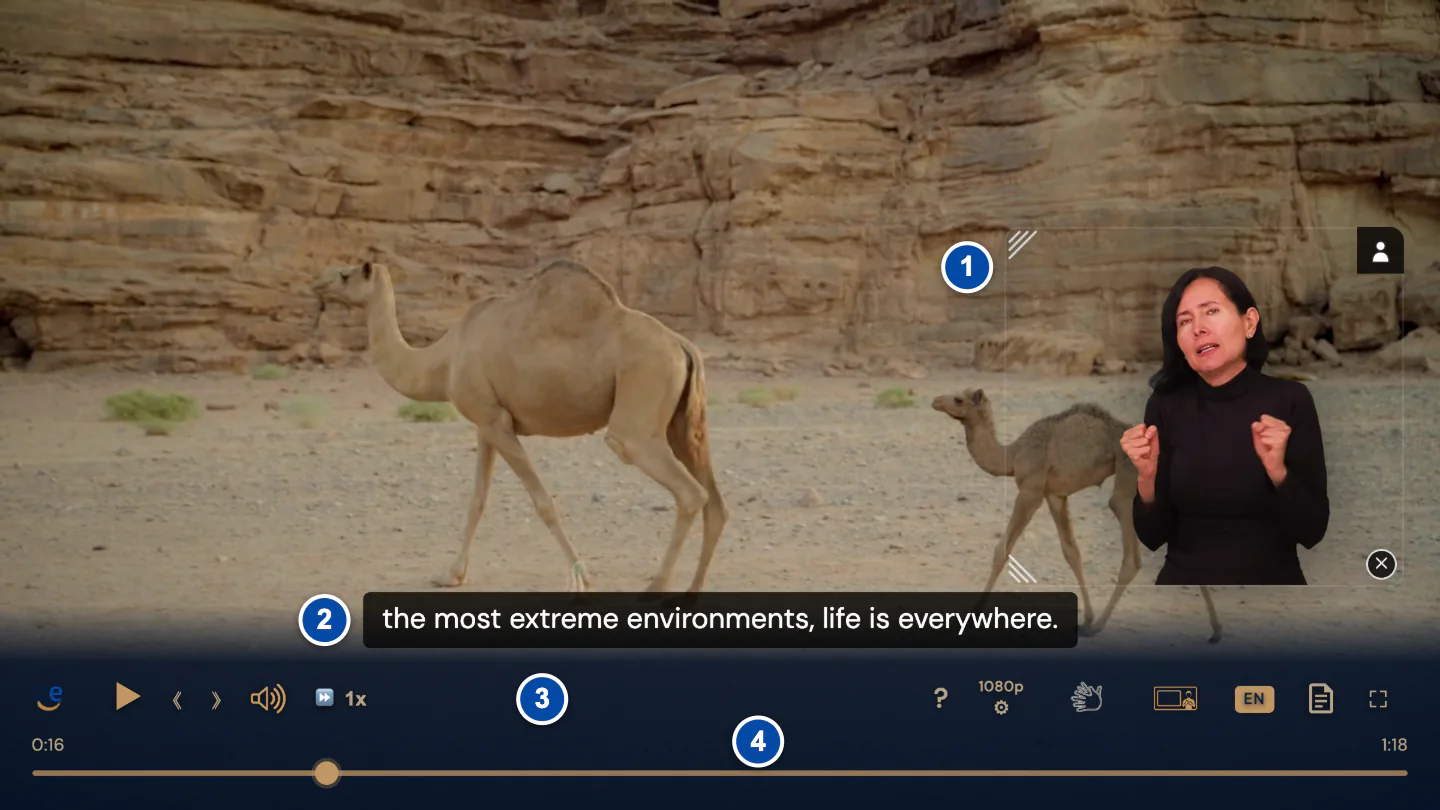
- The translation window, with the signer.
- A caption. Captions are off until you turn them on.
- The control bar.
- The time and the seek bar.
The translation window has its own small controls: a background button in its top-right corner, ✕ in its bottom-right corner to close it, and two corners on its left side that you drag to resize it. You can also drag the whole window to move it.
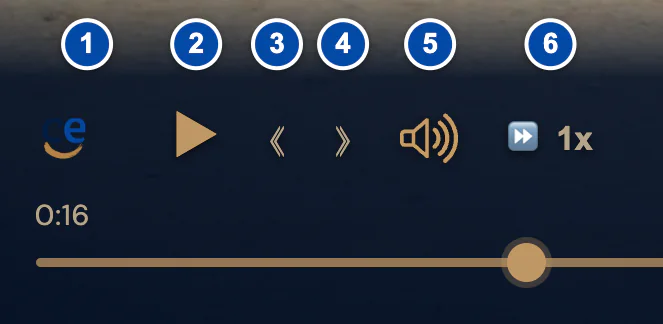
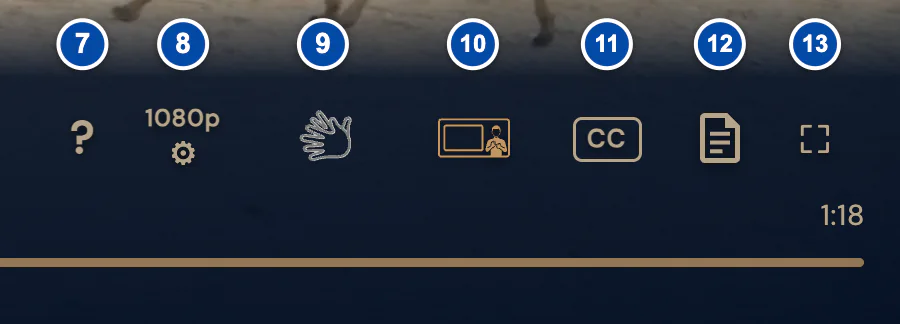
| No. | Control | What it does |
|---|---|---|
| 1 | About Acceasy Player (the logo) | Opens a small card about the player. The logo |
| 2 |  Play | Plays or pauses the video. Play and pause |
| 3 |  Rewind 10 seconds | Goes back 10 seconds. Back or forward 10 seconds |
| 4 |  Forward 10 seconds | Goes forward 10 seconds. Back or forward 10 seconds |
| 5 |  Mute | Turns the sound off or back on. Point at it with the mouse to open the volume slider. Volume and mute |
| 6 |  Playback speed | Changes the speed. Point at it with the mouse to open the speed slider. Speed |
| 7 |  Keyboard shortcuts | Opens the list of keyboard shortcuts. The shortcuts list |
| 8 |  Resolution | Opens the list of resolutions (picture quality). Resolution |
| 9 |  Sign-language translation | Shows or hides the translation window. Show or hide it |
| 10 |  Picture-in-picture layout | Makes the signer big and the video smaller. This is the player's own layout, not your browser's picture-in-picture. Picture-in-picture layout |
| 11 |  CC | Opens the caption menu: turn captions on or off, and choose their language, size and look. Captions |
| 12 |  Transcript | Opens or closes the transcript of the video. Transcript |
| 13 |  Full screen | Fills the screen with the player. Full screen |
Under the buttons you find the current time on the left, the total time on the right, and the seek bar. See how to jump to another part of the video.
You see these controls only with some videos:
- A sign-language code next to the hand, for example ASL: Choose sign language. You see it only when the video has two or more sign languages. Choose another sign language
- An AD badge: Audio description. You see it only when the video has an audio-described version in the language you are listening to. Audio description
 A globe with a language code, for example EN: Audio language. You see it only when the video has two or more audio languages. Audio languages
 More controls, at the right end of the bar. You see it only when the bar is too narrow for every control. Small screens
The AD badge and the globe sit between Picture-in-picture layout and CC.
Note: CC appears only when the video has captions. Transcript appears only when the video has captions or a written transcript. The logo appears only when the player is wider than 768 pixels. If the video has only one resolution, the resolution button shows it but does not open a list.
How do I start a video?
Select Play. Most browsers don't let a video start with sound by itself, so the player usually opens paused.
- Wait for the loading spinner to go away.
- Select Play near the left end of the control bar.
- The video starts. The signer plays in the translation window, usually in the bottom-right corner.
With a mouse
Click Play, or click the video itself.
On a touch screen
Tap Play. If you don't see the controls, tap the video first.
With the keyboard
Press Tab until you reach the player, then press K.
The sign-language translation is on from the start. Captions are off until you turn them on.
Note: The first time you press Play, the video may take a moment to start while the player gets the signer ready. The translation window may look dimmed until the signer is ready.
Where did the controls go?
While the video plays, the controls hide 3 seconds after you stop moving the mouse. Move the mouse over the video, tap the video, or press Tab to bring them back.
With a mouse
Move the mouse over the video. The mouse pointer also hides while the controls are hidden.
On a touch screen
Tap the video to show the controls. While the video plays, tap the video again to hide them.
With the keyboard
Press Tab. The controls stay while a control has keyboard focus.
The controls do not hide while the video is paused, while the caption menu or the logo card is open, while the mouse rests on the control bar or one of its menus, or while a control has keyboard focus.
Captions stay on screen when the controls hide. The small buttons of the translation window fade 2 seconds after you stop moving the mouse; they come back when you move the mouse, touch the screen or move to them with the keyboard.
Tip: In full screen, a round Exit full screen button stays in the top-right corner all the time, even when the control bar is hidden. See Full screen.
Can I use a mouse, a touch screen or a keyboard?
Yes. You can use any of them, and you can switch from one to another at any time.
With a mouse
Click a button to use it. Point at the speaker or the speed button to open its slider. Point at a button in the bar to see its name and, for most buttons, its shortcut key. A menu closes when you click outside it.
On a touch screen
Tap the video to show the controls, then tap a control. A menu closes when you tap outside it. Drag the translation window with your finger to move it.
With the keyboard
Press Tab until you reach the player, or click inside it once. Tab and Shift + Tab move between the controls, and Enter or Space presses the control that has focus. A gold outline shows where you are. Letter keys are shortcuts, for example K to play or pause.
To see every shortcut inside the player, select Keyboard shortcuts or press ?. Opening the shortcuts list pauses the video. Press Play when you close it. The full list is on the Keyboard shortcuts page.
Note: The shortcut keys work only when the player has keyboard focus. They are off while the seek bar, the volume or speed slider, or the transcript search box has focus. See why the keys don't do anything.
The player also works with screen readers. See screen readers.
Why are some buttons missing on a small screen?
When the player is too narrow for every control, some controls move into More controls, the ⋯ button at the right end of the bar.
- Select More controls. A column opens above it with the controls that did not fit.
- Use the control you need. The resolution list and the speed slider open to the left of the column.
- To close the column, select More controls again or select outside the column.
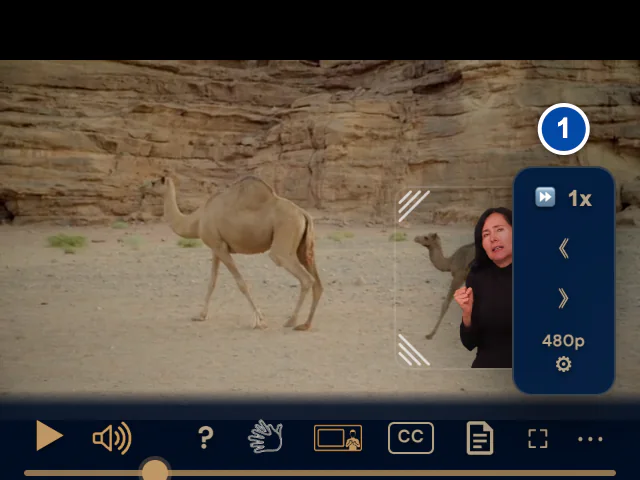
- The controls that did not fit in the bar.
Controls move into More controls in this order, only as many as needed: Playback speed, Rewind 10 seconds, Forward 10 seconds, Resolution, Keyboard shortcuts, Picture-in-picture layout, AD and Transcript. Play, Mute, Sign-language translation (with its sign-language code), the audio language, CC and Full screen always stay in the bar.
With the keyboard
Move to More controls and press Enter. Use the arrow keys to move between its controls. Escape closes it.
On a player 768 pixels wide or less, the logo is hidden, the times show only in full screen, and captions appear at the top of the video unless you choose another position.
Tip: The player checks again when you turn your device, resize the window or go full screen. With more room, the controls come back to the bar.
Can the player show its buttons in my language?
Yes. The player comes in English, Spanish, Portuguese and French, and picks one of them each time the video loads.
If the website or the video sets a language for the player, the player uses it. If not, it uses the first language in your browser's language list that it knows. Otherwise it uses English. The language covers the names and tooltips of the buttons, the menus, the shortcuts list and what the player announces to screen readers.
- Open your browser's language settings.
- Put English, Spanish, Portuguese or French at the top of the list.
- Reload the page with the video.
This works only when the website and the video don't set a language for the player.
Note: The shortcut keys are the same in every language. The language of the captions, the audio and the transcript is chosen separately.
Site owners can set the player's language: see For site owners.
What does the logo do?
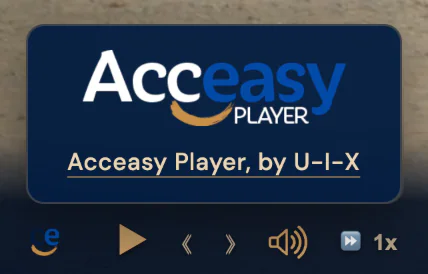
The Acceasy Player logo at the left end of the control bar opens a small card about the player. The logo itself is not a link, so you can't leave the video by accident.
- Select the logo (About Acceasy Player). The card opens above it.
- To learn more, select Acceasy Player, by U-I-X. The Acceasy Player page on u-i-x.com opens in a new tab.
- To close the card, select outside it or press Escape.
Note: The logo appears only when the player is wider than 768 pixels. A right-click on the logo opens the same card. While the card is open, the controls stay on screen.
Still need help?
Book a short call with the U-I-X team, or send us an email.