





Acceasy Player user guide
Keyboard shortcuts
Every key the player understands, and how to use its menus and sliders without a mouse.
Which keys can I use?
The table below lists every key. The keys work while the keyboard focus is inside the player: select one of its controls, or press Tab until a control in the player shows the gold focus ring.
- While you type in the transcript search box, or while a slider (the seek bar, the volume or the speed) has the focus, your keys go to that box or slider. Press Tab to move on.
- When a button has keyboard focus, Space and Enter press that button. K still plays and pauses.
- Inside an open menu, the arrow keys move through the menu.
- The letters are the same in every language of the player, and upper or lower case does not matter.
| Key | What it does | Works when |
|---|---|---|
| Playing | ||
| Space or K | Plays or pauses the video. | Always. If a button has keyboard focus, Space presses that button instead: use K. |
| ← / → | Goes back or forward 10 seconds. | Always. |
| Y / I | Goes back or forward 10 seconds (the same as ← and →). | Always. |
| Sound and speed | ||
| ↑ / ↓ | Turns the volume up or down by 10%. The player announces the new volume. | Always. |
| V | Mutes or unmutes the sound. | Always. |
| M / N | Makes the video faster or slower by 0.1×, from 0.25× up to 4×. The player announces the new speed. See speed. | Always. |
| L | Switches to the next audio language. The list of languages opens for a moment. | The video has two or more audio languages. |
| D | Turns audio description on or off. | You see the AD button: the video has a described version in the audio language you are hearing. |
| Captions and transcript | ||
| C | Turns captions on at your size. The next presses make them bigger, one size at a time, and then turn them off. The player announces each step. C does not open the caption menu. | The video has captions. |
| T | Opens or closes the transcript. | The video has captions or a transcript. |
| Sign-language translation | ||
| J | Shows or hides the sign-language translation. | Always. |
| B | Changes the background behind the signer: transparent, black, blue, then transparent again. | Always. |
| H | Turns the picture-in-picture layout on or off: the signer gets bigger and the video smaller. It is the player's own layout, not your browser's picture-in-picture. | Always. |
| Shift + ← ↑ → ↓ | Moves the translation window a small step in that direction. It stays inside the video, above the control bar. | The translation window is shown. |
| 0 to 9 | Changes the size of the translation window: 0 is the smallest, 9 the largest that fits. Use the number keys above the letters, or the number pad with Num Lock on. | The translation window is shown. |
| Other | ||
| F | Turns full screen on or off. | Always. |
| Q | Switches to the next resolution. The list of resolutions opens for a moment, and the player announces the new one. | The video has two or more resolutions. |
| ? | Opens or closes the keyboard shortcuts list. Opening it pauses the video. On a US keyboard, ? is Shift + /. | Always. |
| Escape | Closes what is open, one thing per press: a menu, a slider, the shortcuts list, or the transcript when the focus is inside it. In full screen, your browser also uses Escape to leave full screen. | Something is open, or you are in full screen. |
| Space or Enter | Presses the button, link or menu item that has keyboard focus. | A control has keyboard focus. |
| Tab / Shift + Tab | Moves to the next or the previous control. | Always. |
Tip: Press ? in the player to see the main keys without leaving the video.
How do I see the shortcuts inside the player?
Select ? in the control bar, or press ?. A list of the main keys opens over the video.
- Select
 ? in the control bar. On a small screen, it may be inside ⋯ (More controls).
- Read the list. Each key sits in a box, with what it does next to it.
- To close the list, select ✕ or the dark area around the list, or press Escape or ?.
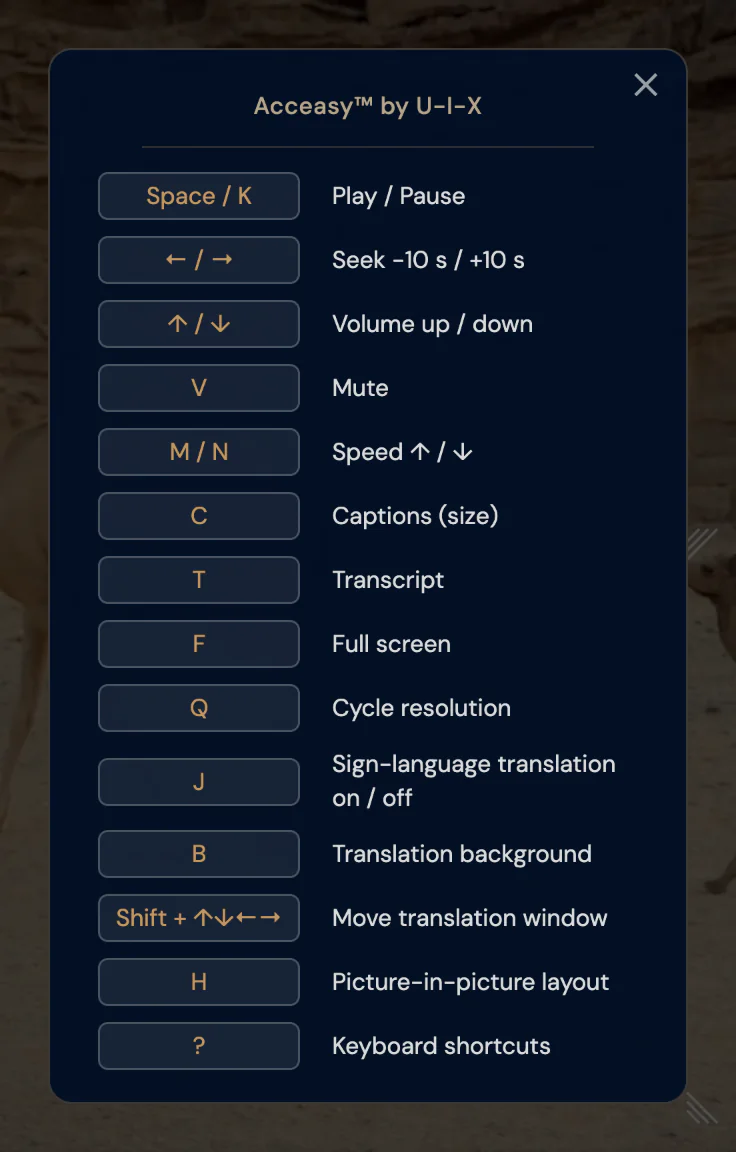
Note: Opening the shortcuts list pauses the video. When you close it, select Play or press K to continue.
The list is written in the player's language. Its rows for T (Transcript), L (Audio language) and D (Audio description) appear only in videos that have those features. A few keys are not in the list: Y and I, 0 to 9, and Escape. The table of every key has them all.
With the keyboard
When you open the list with the keyboard, the focus moves to ✕. Tab stays inside the list until you close it, and then the focus goes back to ?.
On a touch screen
Tap the video to show the controls, then tap ?. On a narrow player, each key sits above its description and the list scrolls.
Why don't the keys do anything?
Most often, the keyboard focus is somewhere else. Check these, in order.
- Put the focus in the player. Select one of its controls, or press Tab until a control in the player shows the gold focus ring. Keys you press elsewhere on the web page go to the page, not to the player.
- Leave sliders and the search box. While the seek bar, the volume, the speed slider or the transcript search box has the focus, your keys move that slider or type in the box. Press Tab to move on.
- Close the open menu. Inside a menu, the arrow keys move through the menu. Press Escape to close it.
- To play or pause, press K. When a button has keyboard focus, Space and Enter press that button instead.
- Check that the video has the feature. C needs captions, T needs captions or a transcript, L needs two or more audio languages, D works only while you see the AD button, and Q needs two or more resolutions. Shift + arrows and 0 to 9 need the translation window on screen: press J to show it.
How do I use the menus and sliders with the keyboard?
Move to a button with Tab, open its menu with Enter or Space, and move inside the menu with the arrow keys.
- Press Tab until the button has the gold focus ring, for example CC or the resolution button.
- Press Enter or Space. The menu opens on the current choice.
- Press ↓ or → for the next item and ↑ or ← for the previous one. Home and End go to the first and the last item.
- Press Enter or Space to choose.
- To close the menu without choosing, press Escape. The focus goes back to the menu's button. Moving out of the menu with Tab also closes it.
Some controls work a little differently:
- CC: ↓ also opens the caption menu. In Caption style, ← and → move along a row, ↑ and ↓ move to the row above or below, and Escape closes the whole menu.
- ⋯ (More controls): Enter or Space opens the group and moves to its first control. The arrow keys move between its controls, and Escape closes it.
- Volume and speed: move to the speaker button or the speed button with Tab, and its slider appears. Press Tab once more to reach the slider, then use the arrow keys. Escape closes the slider and takes you back to its button.
- Seek bar: with the focus on it, the arrow keys move through the video in small steps. For 10-second jumps, press Tab to leave the seek bar and use ← and →.
- Transcript: in the list of lines, ↑ and ↓ move between lines, and Enter takes the video to the line. See how to follow along and jump to a line.
- Translation window: instead of dragging it, press Shift + an arrow key to move it and 0 to 9 to resize it.
Note: Escape closes one thing per press, starting with the one you are in. It closes the transcript only when the focus is inside the transcript.
Still need help?
Book a short call with the U-I-X team, or send us an email.