





Acceasy Player user guide
Captions
Turn captions on, choose their language and size, and make them easier to read.
How do I turn captions on?
Captions are off every time a video opens. Turn them on in the caption menu, which opens from the CC button.
- Select
 CC in the control bar. The caption menu opens above it.
- In the top row, choose a language, for example EN for English. Captions turn on in that language.
- Select CC again to close the menu.
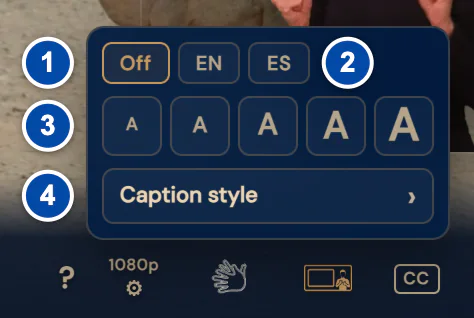
- Off turns captions off.
- The caption languages, shown as short codes: EN is English, ES is Spanish.
- Five caption sizes, from the smallest on the left to the largest on the right.
- Caption style opens the options for color, background, font, text edge and position.
While captions are on, the button is a filled gold badge. When the video has captions in more than one language, the badge shows the language code instead of CC, for example  EN.
With the keyboard
Press C to turn captions on without opening the menu. To open the menu, move to CC with Tab and press Enter.
On a touch screen
Tap the video to show the controls, then tap CC.
Note: You see CC only when the video has captions. If it is missing, see Captions or the transcript do not show.
How do I turn captions off?
Choose Off in the caption menu.
- Select the caption button. While captions are on, it shows CC or a language code such as EN.
- Choose Off, the first item in the top row.
With the keyboard
Press C until captions turn off. Each press makes them one size bigger; from the fourth or the fifth size, the next press turns them off (see How do I make captions bigger or smaller?). The player announces “Captions off” to screen readers.
How do I choose the caption language?
Choose a language code in the top row of the caption menu. The player remembers your choice.
- Select CC, or the language code that shows in its place.
- In the top row, choose a language, for example ES for Spanish. Captions turn on in that language, or switch to it if they were already on.
The codes are the languages this video has captions in. Screen readers read each code with the full language name, for example “English, EN”.
The next time you turn captions on, they come up in the language you chose, when the video has it. Until you choose one, the player looks for the player’s language (when the website sets one), then for your browser’s languages, and otherwise uses the video’s first caption language.
With the keyboard
With keyboard focus on CC, press Enter to open the menu. Use the arrow keys to reach a language and press Enter. Escape closes the menu. More in How do I use the menus and sliders with the keyboard?
How do I make captions bigger or smaller?
Choose one of the five A buttons in the caption menu. They go from the smallest size on the left to the largest on the right.
- Select CC.
- In the second row, choose an A button. The second one from the left is the default size. If captions were off, they turn on at that size.
The player remembers the size you choose in the menu.
With the keyboard
Press C. If captions are off, the first press turns them on at the size you chose in the menu, or at the default size. Each next press makes them one size bigger, up to the fourth size; the press after that turns captions off. The player announces each change to screen readers.
Note: Sizes you set with C are not remembered, and C never steps up to the largest size. To keep a size, or to use the largest one, choose it in the menu.
How do I change how captions look?
Open Caption style in the caption menu. Each choice applies at once, and the player remembers it.
- Select CC.
- Choose Caption style. The style options take the place of the first view of the menu.
- Choose an option in any row. The captions change right away.
- Choose Back to return to the first view, or select CC to close the menu.
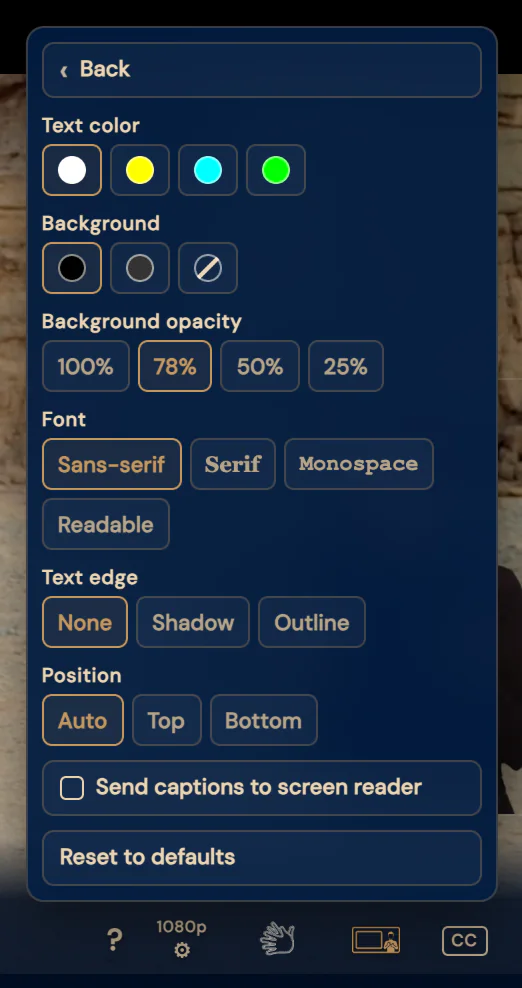
| Row | Choices | Default |
|---|---|---|
| Text color | White, yellow, cyan or green | White |
| Background | Black, dark gray or none (the crossed-out circle) | Black |
| Background opacity | 100%, 78%, 50% or 25%. A lower number lets more of the picture show through. | 78% |
| Font | Sans-serif, Serif, Monospace or Readable, a font designed for easy reading | Sans-serif |
| Text edge | None, Shadow or Outline: an edge that makes the letters stand out | None |
| Position | Auto, Top or Bottom (see How do I move captions to the top of the video?) | Auto |
Colors and backgrounds are round swatches. Point at one to see its name; screen readers read the name too.
Note: When Background is set to none, the Background opacity row disappears, because there is no background to adjust.
With the keyboard
In the style view, ← and → move along a row, ↑ and ↓ move to the row above or below, and Enter or Space chooses. Escape closes the whole menu.
How do I move captions to the top of the video?
In Caption style, choose Top in the Position row.
- Select CC, then Caption style.
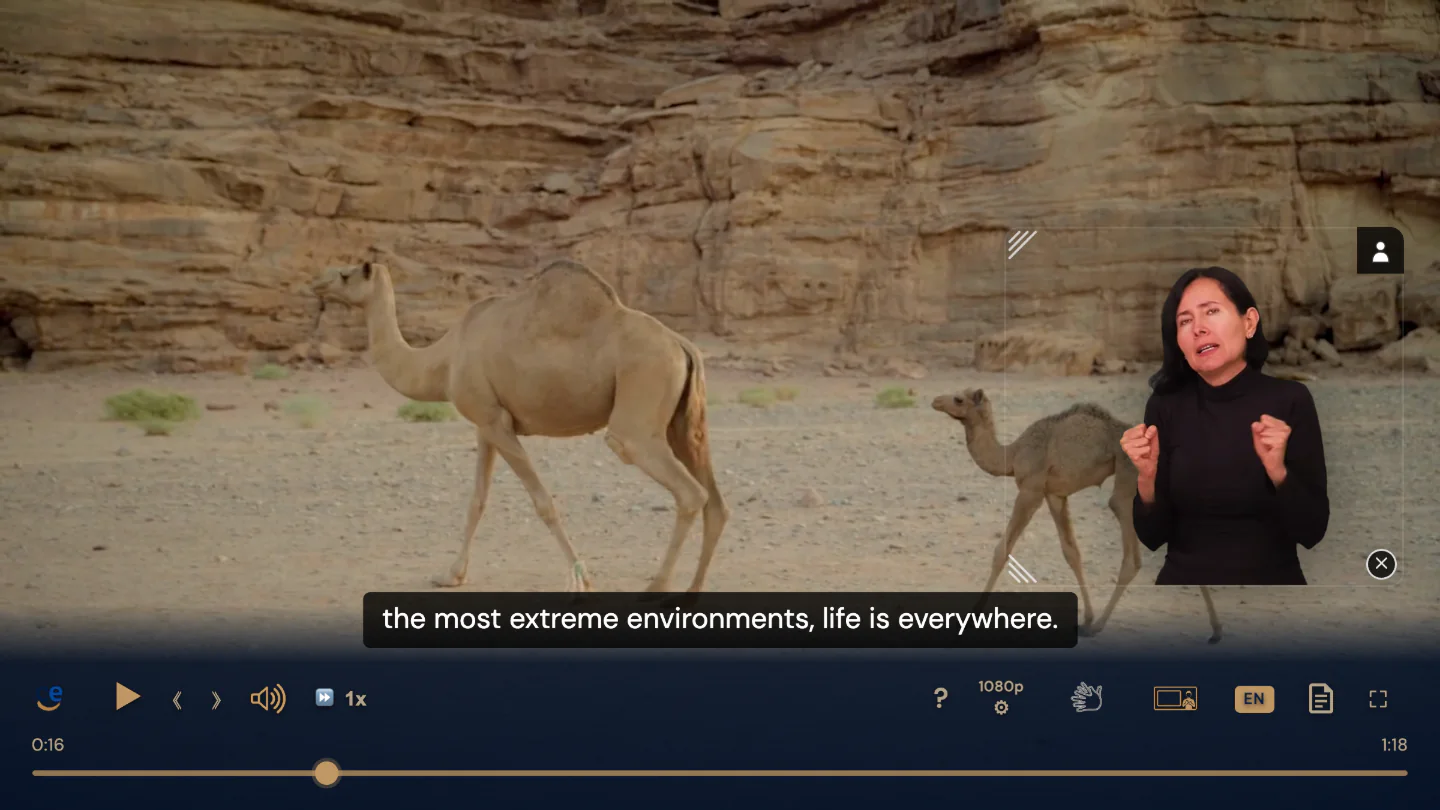
- In the Position row, choose Top. The captions move at once, and the player remembers your choice.
- Auto (the default): near the bottom, just above the controls, on a wide player. On a narrow player (768 pixels wide or less, for example on a phone held upright), at the top of the video. Captions that the video itself places somewhere else stay in that place.
- Top: every caption at the top of the video, on every screen.
- Bottom: every caption at the bottom, just above the controls, on every screen.
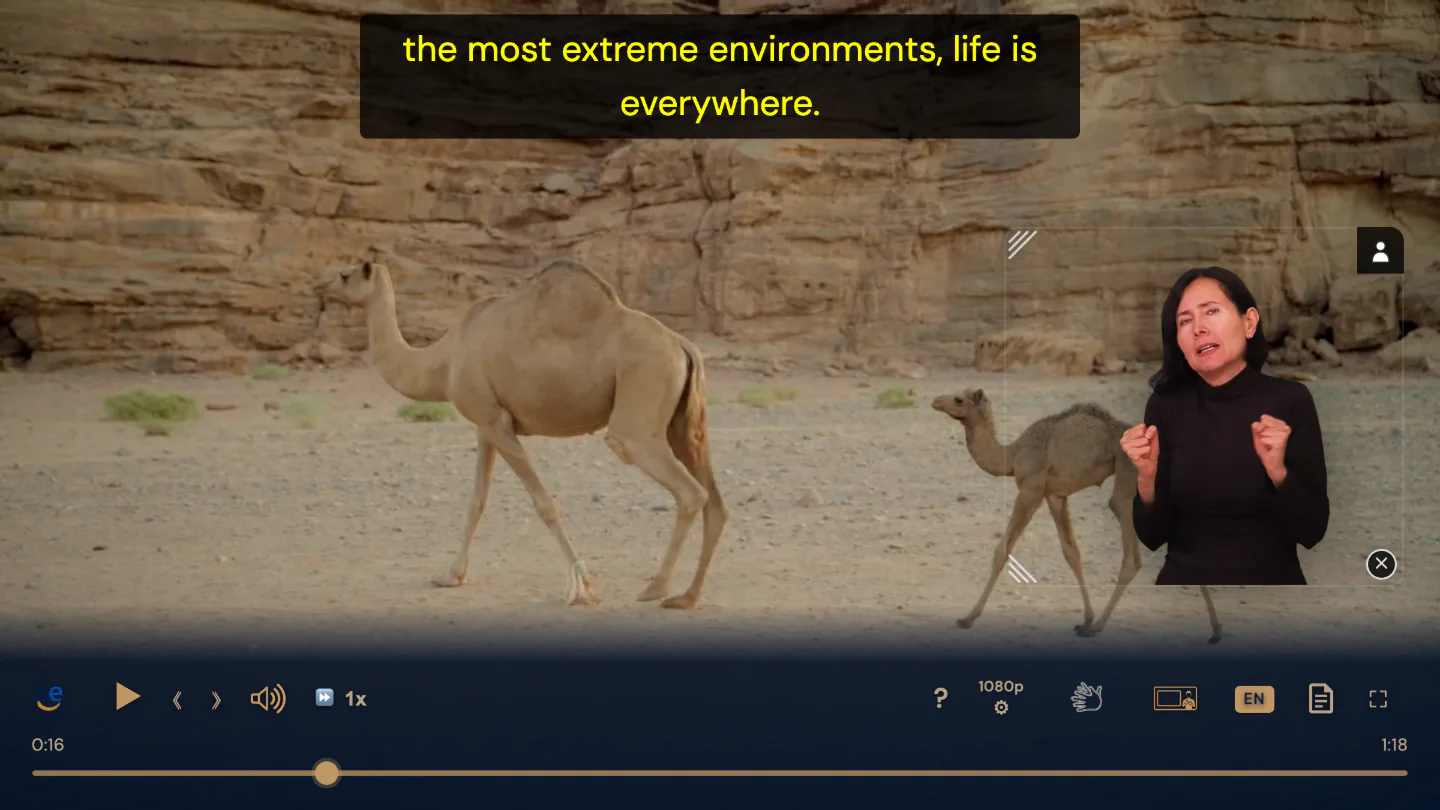
Captions stay on the screen when the controls hide.
Tip: If captions and the translation window get in each other’s way, choose Top, or move the translation window.
Can my screen reader read the captions?
Yes. Turn on Send captions to screen reader in Caption style. Your screen reader then reads each new caption once, in the caption’s language.
- Select CC, then Caption style.
- Choose Send captions to screen reader. Its box is checked while it is on, and the player announces “Captions for screen readers on”.
Turning it on also turns captions on if they were off. Your screen reader reads the captions while they are on. To stop it, choose Send captions to screen reader again. The player remembers this setting with your other caption choices.
More about screen readers on the Accessibility features page.
How do I go back to the default caption look?
Choose Reset to defaults at the bottom of Caption style.
- Select CC, then Caption style.
- Choose Reset to defaults. The player announces “Caption style reset to defaults”.
Every style row goes back to its default, and Send captions to screen reader turns off. The player also forgets the caption language and size you chose. If captions are on, they stay on at the default size, in the language the player picks when you have not chosen one (see How do I choose the caption language?).
Does the player remember my caption choices?
Yes: your caption language, size and style. Captions still start off every time, so turn them on from the caption menu or with C. They then come up the way you left them.
| Setting | Remembered? |
|---|---|
| The caption language you choose in the menu | Yes |
| The caption size you choose with an A button | Yes |
| Every Caption style choice, including Send captions to screen reader | Yes |
| Captions on or off | No. Captions are off every time a video opens. |
| Size changes made with the C key | No |
Note: Your choices are kept in the browser you use, on that device. In a private window, or when your browser blocks or clears site data, the player may not keep them. To make the player forget them, use Reset to defaults.
For audio choices, see Does the player remember my audio choices?
Still need help?
Book a short call with the U-I-X team, or send us an email.