





Acceasy Player user guide
Sign-language translation
The signer appears in a translation window that you can show, hide, move, resize and enlarge.
How do I show or hide the sign-language translation?
The sign-language translation is on when the video starts. The signer appears in the translation window, usually in the bottom-right corner, and follows every play, pause, jump and speed change.
- To hide the translation, select the sign-language button
 Sign-language translation in the control bar. The window disappears, and the hand on the button starts to glow blue.
- To show it again, select the glowing hand
 . The window comes back in its corner at its starting size, and the hand turns plain gray.
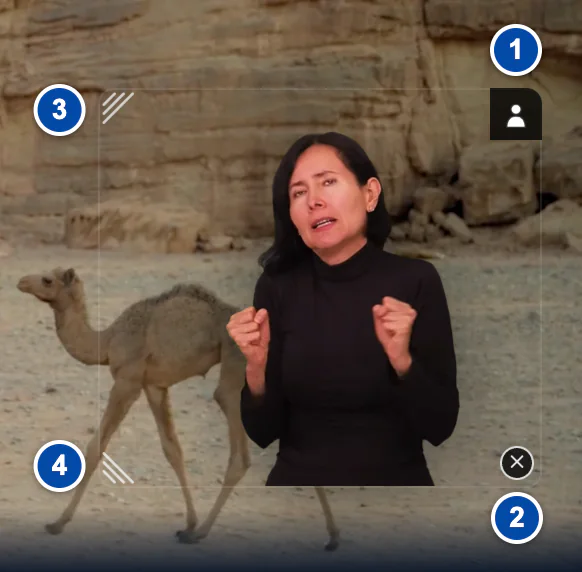
- The background button: changes the background behind the signer.
- ✕: closes the translation window.
- The top-left corner: drag it to resize the window.
- The bottom-left corner: drag it to resize the window.
With the keyboard
Press J. The player announces "Sign-language translation on" or "off". Keys work only when the player has focus (why keys do nothing).
On a touch screen
Tap the video to show the controls, then tap the sign-language button.
Note: The window's own buttons and corners fade after a moment without the pointer. They come back when you move the mouse over the window, touch it, or reach them with Tab.
How do I change the background behind the signer?
Use the background button in the top-right corner of the translation window. There are three backgrounds: transparent (the start), black and blue.
- Point at the translation window, or touch it, so that its buttons show.
- Select the small square button in the window's top-right corner (screen readers call it "Translation background"). The background changes from transparent to black.
- Select it again for blue. Select it once more to go back to transparent.
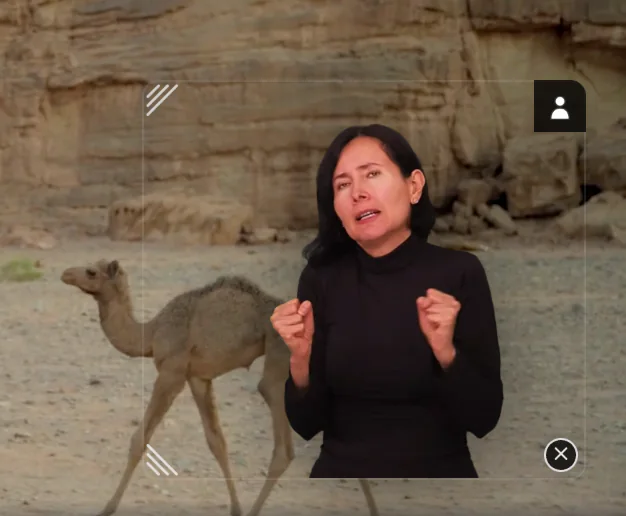
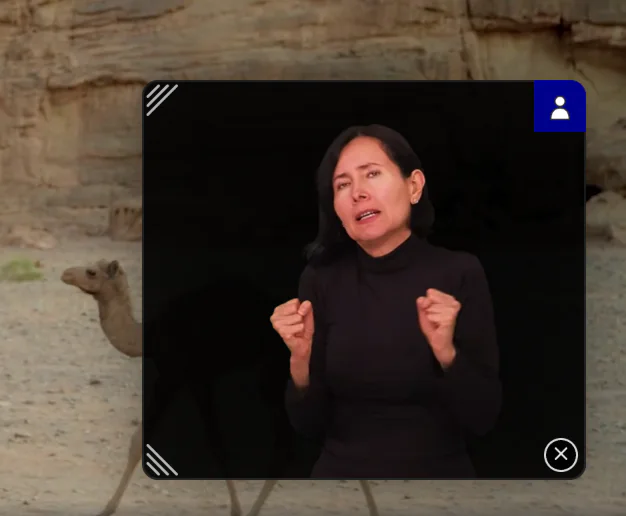
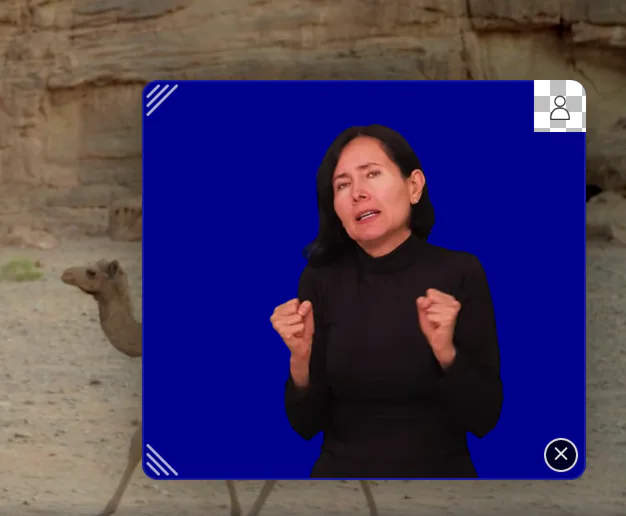
With the keyboard
Press B. Each press moves to the next background, and the player announces it, for example "Translation background: black".
On a touch screen
Touch the translation window to show its buttons, then tap the background button.
Tip: The picture on the background button shows the background you get next.
How do I move the translation window?
Drag the window to a new place, or hold Shift and use the arrow keys.
- Point inside the translation window, away from its buttons and corners.
- Press and hold the mouse button, and drag the window where you want it.
- Release the mouse button.
With the keyboard
Hold Shift and press ←, ↑, → or ↓. Each press moves the window a small step, always inside the video and above the control bar. Without Shift, the arrows change the volume and jump 10 seconds.
On a touch screen
Put your finger inside the translation window, away from its buttons, and drag.
Note: The window goes back to its starting corner when you change the resolution, enter or leave full screen, or when the vertical version starts or stops. A change of audio language keeps it in place.
Tip: If the translation window ends up partly off the video, press J twice: it comes back to its corner. Selecting the sign-language button twice works too.
How do I make the translation window bigger or smaller?
Drag one of the window's two left corners, or press a number key from 0 to 9.
- Point at the translation window so that its corners show. They are marked with short diagonal lines.
- Drag the top-left or the bottom-left corner. Drag to the left to make the window bigger, or to the right to make it smaller.
- Release the mouse button. The window keeps the signer's shape, and the opposite corner stays where it was.
With the keyboard
Press a number key, on the top row or the number pad. 0 is the smallest size and 9 the largest that fits above the control bar. The corners work only with a mouse or a finger.
On a touch screen
Touch the translation window to show its corners, then drag a corner with your finger.
Tip: For a much larger signer, use the picture-in-picture layout.
How do I make the signer the main picture?
Turn on the Picture-in-picture layout: the video gets smaller and the translation window much larger. This is the player's own layout, not your browser's picture-in-picture, so nothing opens in a separate window.
- Select the
 Picture-in-picture layout button in the control bar. The video shrinks into a top corner and the translation window grows beside it. The button turns from gold to white
 .
- To go back, select the button again. The video fills the player, and the window returns to its corner at its starting size.
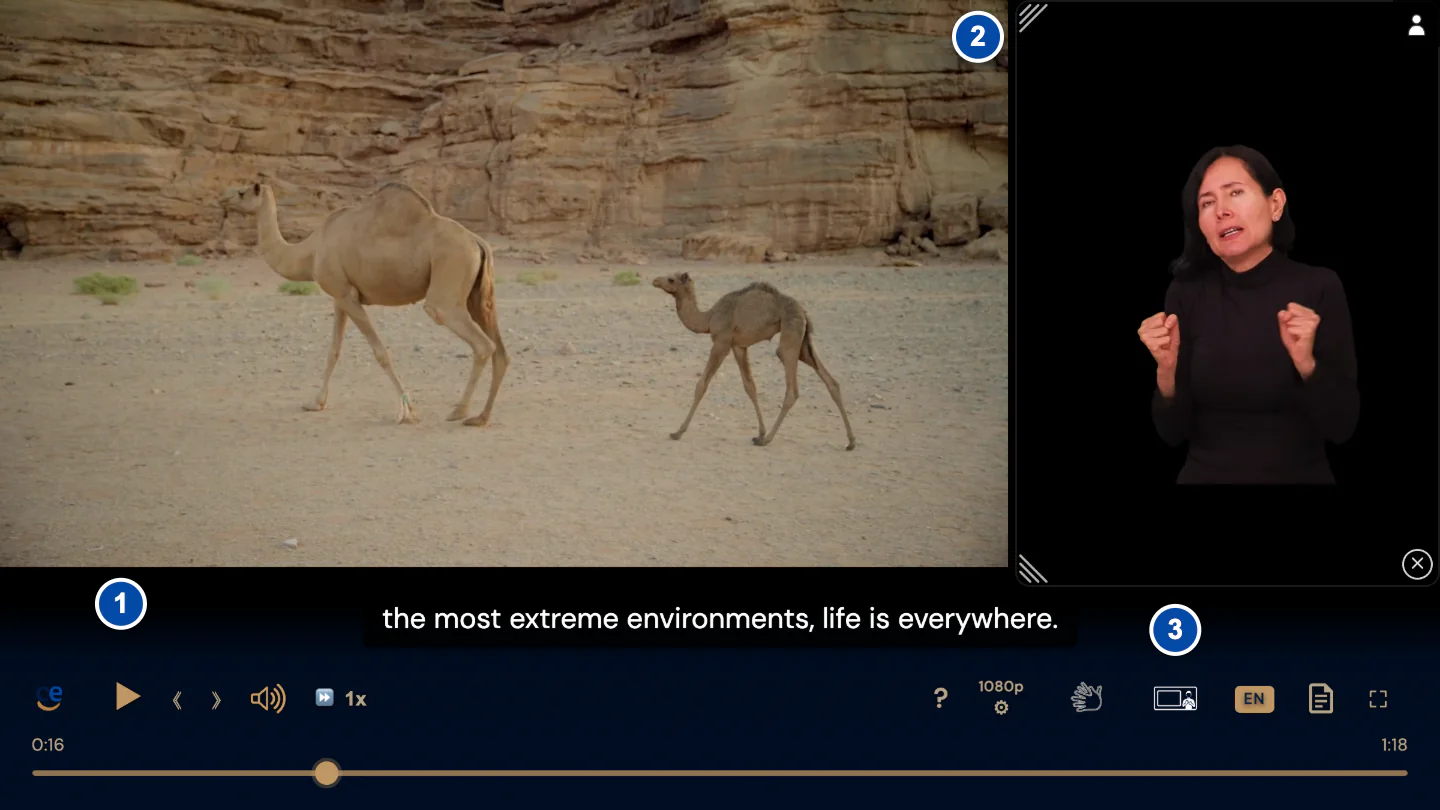
- The video, made smaller.
- The translation window, made larger.
- The Picture-in-picture layout button, on.
With the keyboard
Press H. The player announces "Picture-in-picture layout on" or "Picture-in-picture layout off".
On a touch screen
Tap the video to show the controls, then tap the Picture-in-picture layout button.
Note: Turning on the layout also shows a hidden translation, and hiding the translation turns the layout off. Some videos open in this layout. On a small screen, the button may be inside ⋯ More controls.
How do I choose another sign language?
You see this only when the video has more than one sign language. A small button next to the sign-language button then shows the code of the sign language you are watching, for example ASL.
- Select the code next to the sign-language button. A list of sign-language codes opens.
- Choose a code. The translation window dims while the new signer loads. The video does not wait, and the new signer picks up at the same moment.
With the keyboard
Move to the code with Tab and press Enter. The list opens on the current sign language. Choose with the arrow keys and press Enter, or press Escape to close the list. The player announces the change, for example "Sign language: ASL".
On a touch screen
Tap the video to show the controls, tap the code, then tap a sign language.
Note: The sign languages depend on the video. The player shows the ones that the video's owner provides.
How do I close the translation window?
Select ✕ in the bottom-right corner of the translation window. This hides the translation until you turn it on again.
- Point at the translation window, or touch it, so that its buttons show.
- Select ✕. The window closes, and the hand on the sign-language button starts to glow blue.
- To bring the window back, select the sign-language button in the control bar, or press J.
With the keyboard
Move to ✕ with Tab (screen readers call it "Close sign-language translation") and press Enter. Focus moves to the sign-language button: press Enter again to bring the window back.
On a touch screen
Touch the translation window to show its buttons, then tap ✕.
Note: The signer keeps up with the video while the window is closed. When you bring it back, the signer is at the same moment as the video. Closing the window also turns off the picture-in-picture layout.
Does the player remember my translation settings?
No. Each time the video loads, the sign-language translation is on again, with a transparent background, at its starting place and size. The place, size and background of the window, the picture-in-picture layout and the sign language you chose are not saved for your next visit.
The player does remember your caption choices and your audio description choice.
Can't find or move the translation window? See TroubleshootingStill need help?
Book a short call with the U-I-X team, or send us an email.